Instructions for Adding BookFlix Web Buttons
Adding a BookFlix button to your web page is a simple operation. It requires that you download a
self-extracting ZIP file. When this is run, it will place a bkflix_buttons folder on your desktop that contains button images for the BookFlix product. You would then upload this folder to your Web site and use the code snippet below to display the button on your Web page.
These instructions assume you have the ability to upload and manage code on your Web site. Click here to open an Adobe Acrobat version of these instructions.
Click here to download the BookFlix Web Page Button for use with your web page or intranet sites:
- Click the Download link above and click Save.
- Choose your Desktop and click Save.
- Click Close when download is complete.
- Double-click on the bkflix_buttons.exe that is now on your Desktop.
You will see:
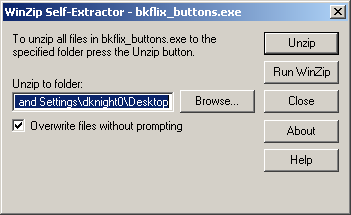
- Click Browse and choose "Desktop" (at the top of the list).
- Click Unzip.
- Once the file has extracted successfully, click OK.
- Click Close.
- You will now have the bkflix_buttons folder on your Desktop. Upload this folder to your Web site.
- Copy and paste the below html code into your Web page code:
|
| <a href="http://bkflix.grolier.com/"><img src="bkflix_buttons/BookFlix.gif" border="0" alt="BookFLIX"></a> |
 | |
|

